From Arch to NixOS: A Journey into Declarative System Configuration
Introduction
Being a developer and tech enthusiast, I’m always looking for ways to reduce friction in my workflow. While Arch Linux showed me that frictionless development environments are possible, my recent switch to NixOS has taken this to another level. Here’s my journey and why you might want to consider a similar path.

Why I Switched from Arch to NixOS
The catalyst for my switch was, ironically, Windows. After deciding to upgrade my almost 6-year-old Windows 10 installation to Windows 11, I discovered that my Arch Linux dual-boot setup wouldn’t be compatible due to Windows 11’s elevated security requirements, like TPM 2.0 and secure boot. Reinstalling Arch would mean painstakingly recreating my entire development environment – installing every package and configuration to replicate my computing experience.
While I could have written scripts to automate the process, the headache wasn’t worth it. I had previously experimented with NixOS on my laptop in a minimal capacity, and this seemed like the perfect opportunity to fully embrace it. The key features that attracted me were: reproducibility, consistent system state with easy rollbacks, and a declarative approach to system configuration.
Understanding Nix and NixOS: What’s the Difference?
What is Nix?
Nix is a package manager boasting over 120,000[1] packages as of writing. Unlike traditional package managers that use an imperative approach (running commands to install packages), Nix uses a declarative approach where you specify your desired system state in configuration files. This follows a functional programming paradigm rather than traditional scripting.
What is NixOS?
NixOS builds on Nix’s principles to create a complete operating system. It allows you to declaratively configure your entire system, generating a familiar Linux experience from your configuration files. Think of NixOS as the full operating system implementation of Nix’s philosophy.
My NixOS Configuration: Unified Laptop and Desktop Setup
My main configuration.nix file serves as the blueprint for my system. It’s straightforward, similar to JSON or other configuration formats, and includes dynamic declarations for both laptop and desktop setups. For instance, laptop configurations include battery management packages, while desktop configurations include ethernet and Wake-on-LAN support.
    # Desktop-specific configuration
    (lib.mkIf (config.machine == "desktop") {
      # Access machine option
      services.greetd = {
        enable = true;
        settings = {
          initial_session = {
            command = "${session}";
            user = "${config.username}"; # Access username option
          };
          default_session = {
            command = "${tuigreet} --greeting 'Welcome to Desktop' --asterisks --remember --remember-user-session --time -d -cmd Hyprland";
            user = "greeter";
          };
        };
      };
      networking.interfaces = {
        enp8s0 = {
          wakeOnLan.enable = true;
          useDHCP = true;
        };
      };
      environment.systemPackages = desktopPackages;
    })
    # Laptop-specific configuration
    (lib.mkIf (config.machine == "laptop") {
      # Access machine option
      services = {
        displayManager.sddm = {
          enable = true;
          theme = "catppuccin-sddm-corners";
        };
        power-profiles-daemon.enable = true;
        libinput.enable = true;
      };
      environment.systemPackages = laptopPackages;
    })
  ];
By changing a single global variable for the machine type, I can build for either device. While there might be more elegant solutions, this approach works well and eliminates the need to manage multiple repositories.
Storing these configurations in GitHub provides an excellent backup strategy – if your system becomes corrupted or fails to boot, you can simply boot from a fresh ISO, clone your repo, and apply your configurations. I’ve done this several times, and it makes system recovery almost seamless.
GitHub Repo Here
Custom Packaging with Nix and GitHub
Beyond the vast selection of available packages, Nix allows you to import your own using its built-in functional programming capabilities. I use this feature to import my Go program for my Macropad, which reads serial output and processes commands for volume control and media playback.
# macropad.nix

# Package declaration
pkgs.buildGoModule rec {
  pname = "macro_go";
  version= "0.1.1";
  src = pkgs.fetchFromGitHub {
    owner = "PJalv";
    repo = "macropad";
    rev = "0.1.1";
    hash = "...";
  }+"/macro_go";

  vendorHash = "...";
  proxyVendor = true;
  meta = {
    description = "PJalv's Macropad Project";
    homepage = "https://github.com/PJalv/macropad";
    license = lib.licenses.mit;
    maintainers = with lib.maintainers; [ PJalv ];
  };
}

# configuration.nix

# package import
basePackages = with pkgs;
[
  ...
  spotify
  xfce.thunar
  xfce.tumbler
  libreoffice
  vlc
  (import ./macropad.nix)
  ...
];
By including my Macropad repository from GitHub in my Nix configuration, the system automatically builds the binary and makes it available after each rebuild. This approach can be extended to virtually any custom software you need to integrate into your system.
Development Environments Made Easy
ESP-IDF Environment
One of the biggest friction points in development is managing project-specific environments. Take the ESP-IDF framework, for instance. Traditionally, you’d need to follow extensive documentation to set up your environment. On Windows, this often led to Python version conflicts between different projects.
Nix solves this elegantly. By running a single command (using a Nix flake), you can enter a shell with all the necessary ESP-IDF tools and dependencies, including idf.py for building and flashing.
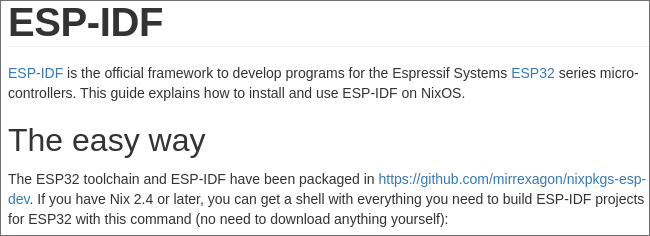
This would have been extremely useful for when I was working on my Senior Project, as I could have my partner easily build and flash code without worrying about downloading and installing executables on windows. (😐)
nix --experimental-features 'nix-command flakes' develop github:mirrexagon/nixpkgs-esp-dev#esp32-idf
The environment is isolated, so there’s no interference with global variables or other projects.
Python Development with Nix Shells
Nix shells provide an elegant solution for Python development. Instead of managing virtual environments and pip installations, you can declare your Python dependencies in a shell.nix file. When you enter the shell, all specified packages are immediately available.
This replaces the traditional workflow of creating virtual environments and managing packages with pip. You get a reproducible Python environment that works consistently across machines, all defined in a single configuration file.
The example below shows a streamlit project with the langchain library for OpenAI API requests.
let
  pkgs = import <nixpkgs> { };
in
pkgs.mkShell {
  packages = with pkgs;  [
      python312Packages.langchain-openai
      python312Packages.langchain
      python312Packages.langchain-community
      python312Packages.html2text
      python312Packages.pypdf
      python312Packages.pyperclip
      python312Packages.python-dotenv
      python312Packages.streamlit
      python312Packages.tomli
      poetry # I could still use poetry for dependency management
      texliveFull # What could I be doing with LaTex programmatically..?
  ];
}
Learn more about Python and Nix here[3].
Getting Started with Nix Without Fully Committing
For Windows users, you can start with Nix through WSL[4]. This gives you access to up-to-date packages that might not be available in your default package repository. For example, you can get the latest version of Neovim with all its dependencies, ensuring compatibility with modern plugins.
Potential Drawbacks and Challenges
The Nix language can be daunting at first, as it differs from traditional programming languages. While the community is helpful and many questions have been answered in various forums, the Nix wiki isn’t as comprehensive as the Arch wiki yet. Performance and compatibility issues might arise, though I haven’t encountered any significant problems so far.
Conclusion
Despite covering much ground, I’m still learning about Nix. There are many areas I want to explore further, like Nix flakes (mentioned in the ESP-IDF section), advanced NixOS configurations, integration with continuous integration workflows, and running NixOS on ARM devices like Raspberry Pi.
I could also dive into Home Manager, but that’s for another time.
The power of NixOS lies in its “set it and forget it” approach. Never again worry about remembering and reinstalling packages to recreate your perfect workflow. While there’s a learning curve, the benefits of reproducibility and declarative configuration make it worthwhile. I encourage you to explore NixOS and see how it might improve your computing experience. As I continue learning, I look forward to sharing more insights with you all.
Check the references section for my favorite Nix Playlist on YouTube to get “nix-pilled”, shout-out to VimJoyer.
References
3 - Python - NixOS Wiki ↩
4 - Nix Install via WSL ↩